Team competitions are a different kind of event. The individual rankings still matter — every gymnast is still competing for their own score — but there's another layer on top: which club walks away with the team trophy? Managing that traditionally means a separate spreadsheet, manual totalling, and hoping you haven't misread a score under pressure.
ChalkItUp's team scoring runs alongside individual scoring without any separate process. Judges score gymnasts as normal. The system picks the right scores, totals them, and updates the team leaderboard in real time. Nothing extra happens on the day — you just tick a box and set two numbers at setup.
How the scoring works
Teams are scored by summing the best individual scores from their members on each apparatus. Two parameters control this:
Team size
The maximum number of gymnasts per team. Sets the upper bound for how many members a club can field in a level.
Scores per apparatus
How many of the team's scores count toward the team total on each apparatus. The rest are dropped. Common format: team size 4, scores per apparatus 3 — the lowest vault score is automatically excluded.
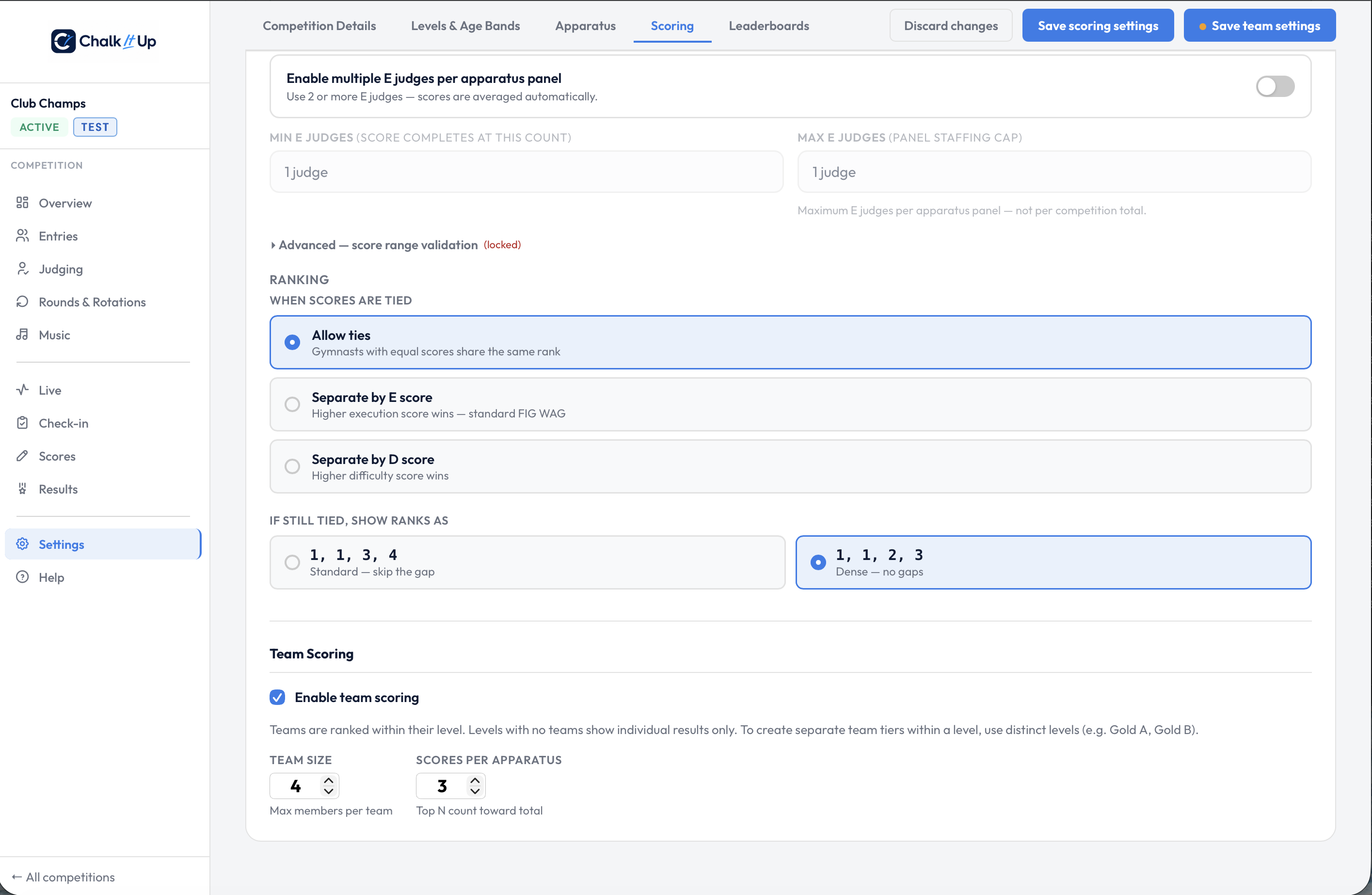
Team size and scores-per-apparatus set in Settings → Scoring.
So if your team size is 4 and scores per apparatus is 3, and your four gymnasts score 8.2, 8.5, 8.7, and 9.1 on vault — the team vault total is 8.5 + 8.7 + 9.1 = 26.3. The lowest (8.2) is dropped automatically. You don't do any of that calculation. ChalkItUp does it as scores come in.
Teams are grouped by level, not age band. If you want separate team competitions within a level — for example, club A and club B teams competing in Gold — create them as distinct teams within the same level. If you need to run separate team tiers, set them up as separate levels in your competition structure.
Gymnasts don't need to be on a team to compete individually. Team assignment is completely separate — unassigned gymnasts appear in the individual rankings as normal, they just won't contribute to a team total. You can run individual scoring only for some gymnasts and team scoring for others in the same event.
Setting it up
- Enable team scoring in the setup wizard (Details step) or in Settings → Scoring at any point before the competition starts.
- Set team size and scores per apparatus. These two numbers are the only configuration required. You can change them in settings right up until scores start coming in.
- Go to the Teams tab and create a team for each club competing within each level. Teams are level-specific — a club with gymnasts in two levels needs a team in each.
- Assign gymnasts to their teams. Click Add gymnasts on a team card and select from the eligible gymnasts in that level. The system prevents double-assignment — a gymnast already on a team shows as assigned and can't be added to another.
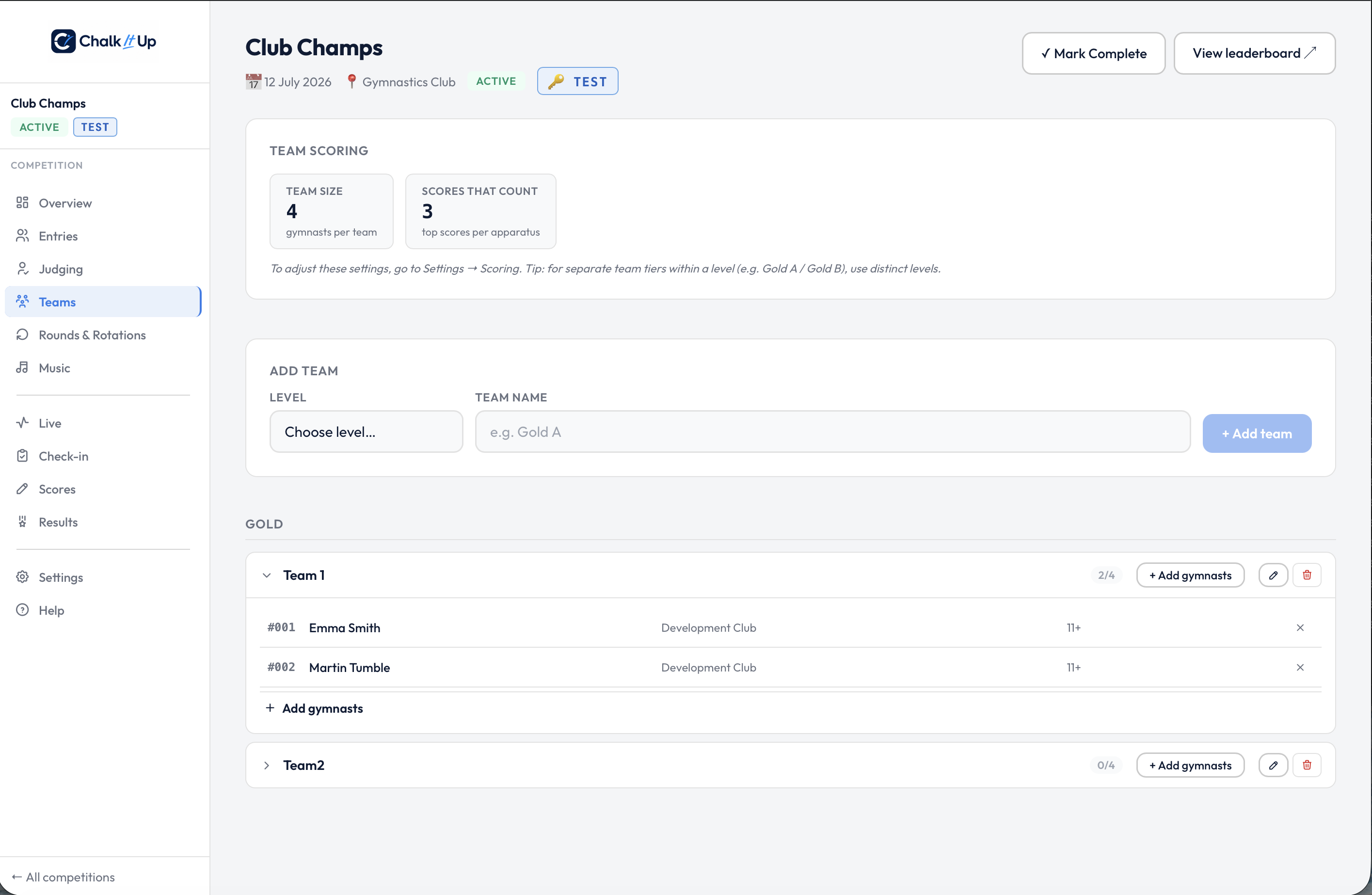
The Teams tab — gymnasts assigned to Team 1 in the Gold level.
That's the full setup. No scoring changes, no separate judging process, no additional steps on the day. Once teams are configured, everything runs automatically as individual scores come in.
Where team results appear
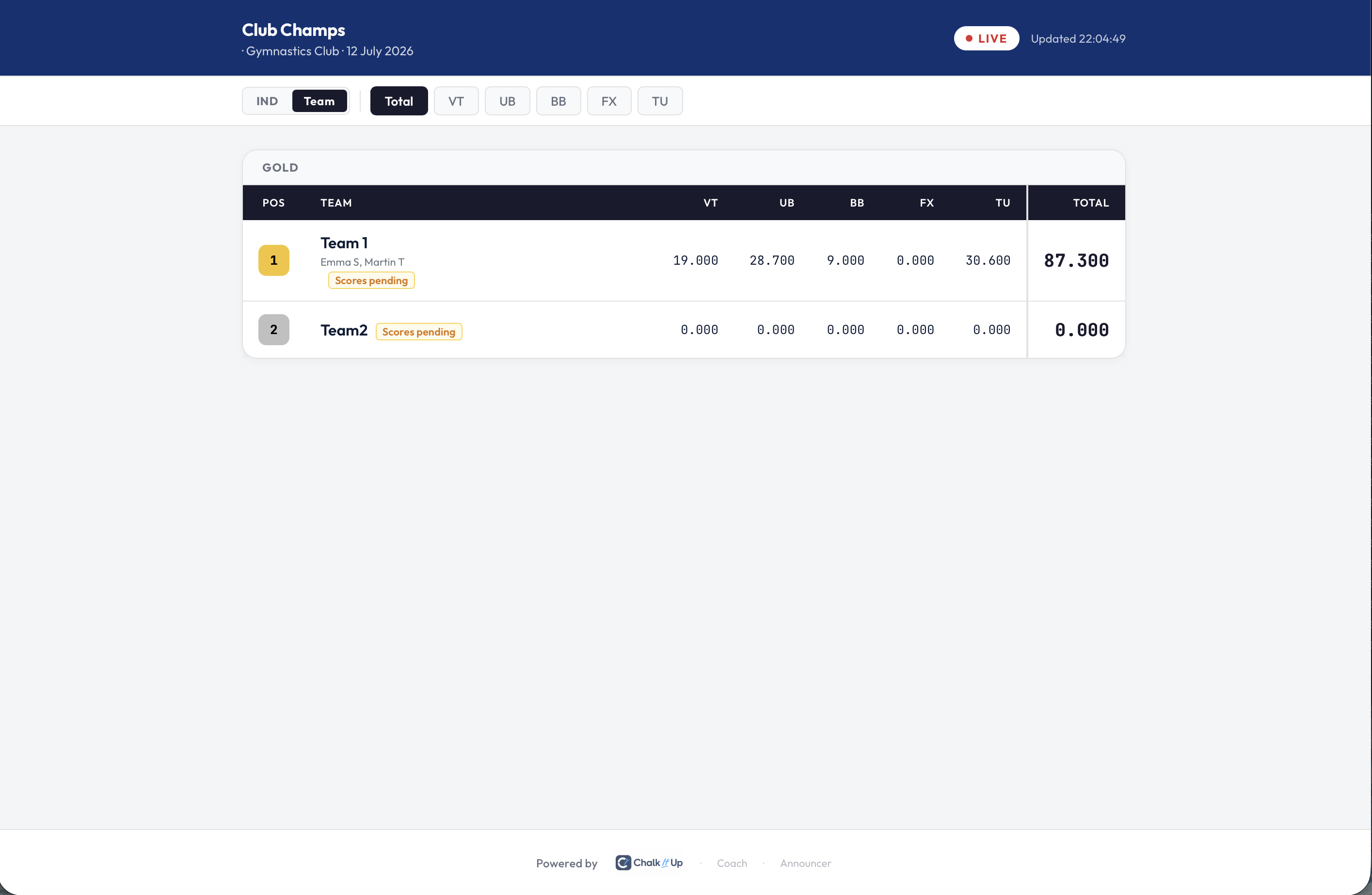
The public leaderboard's Team view, with per-apparatus subtotals for each team.
All of these update in real time as scores are published — the same live pipeline as individual results. You control when team scores become visible to the public using the same visibility controls on the Live tab: keep them hidden while scores are coming in, release to coaches first if you want clubs to see totals before they're announced, then open to everyone when you're ready.
A note on plan requirements
Team scoring is available on Starter plans and above — it's not included in the free tier. If you're setting up a competition and the Teams step in the wizard is greyed out, your account is on the free plan. Upgrading unlocks it immediately, and you can set up teams at any point before scoring begins.
Running a team competition this season?
ChalkItUp handles team and individual scoring in the same system, from the same admin view, with no day-of extras. Start a free trial to explore the setup — upgrade when you're ready to go live.
Start free trial →